BARCODE X GUIDE
How to import a barcode list from Excel or CSV
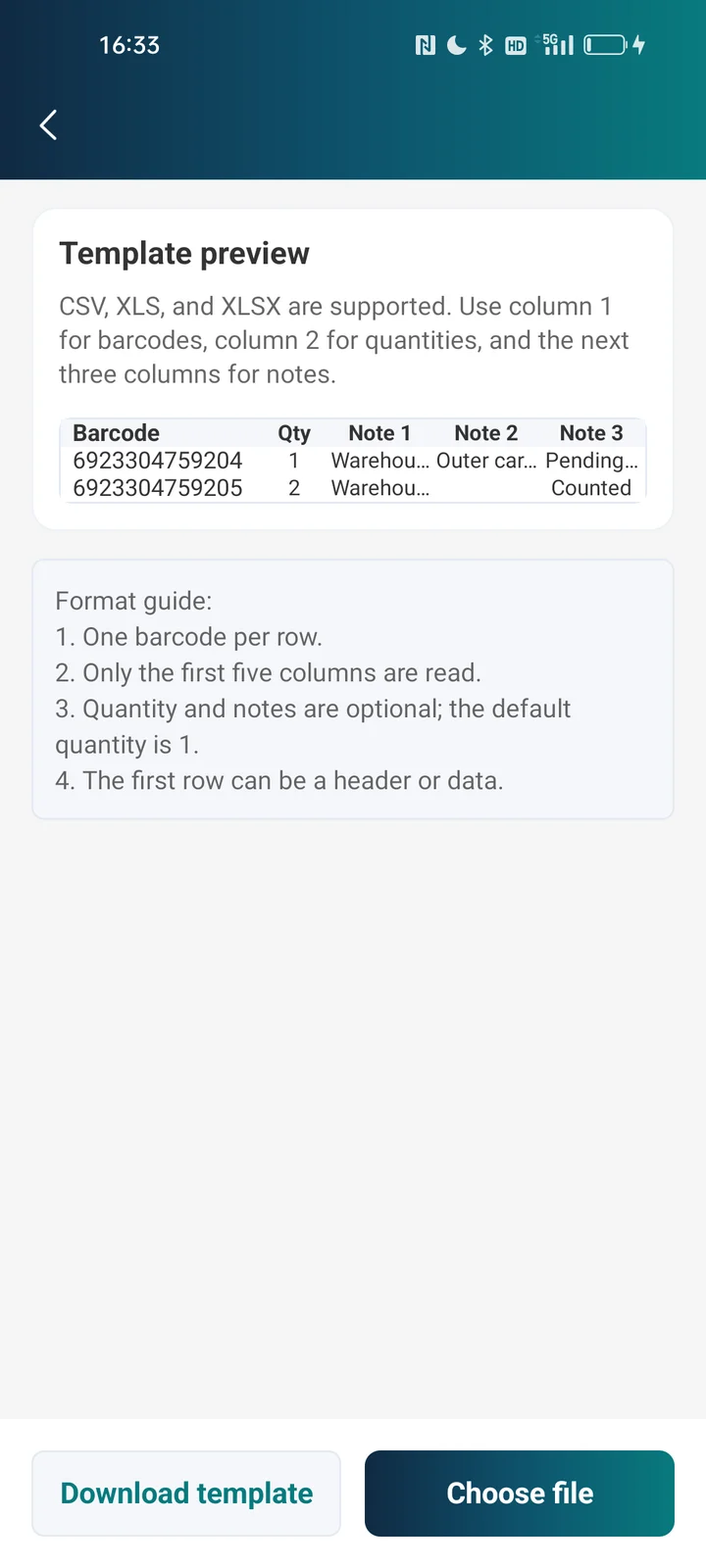
Arrange your data in five columns: barcode value, quantity, Note 1, Note 2, and Note 3. Save a copy, open a new Batch Scan file in Barcode X, then choose Import data → File import → Choose file. Start with the downloadable headerless CSV below and check the result before importing your full list.
Android workflow. Import regression checks use a local Barcode X 1.1.5 test build on Android 13, October 4, 2026; this does not confirm store availability. iOS import was not tested.
Start with a small import template
The sample has two data rows and no header. The first identifier starts with two zeros, and the quantities are 2 and 1. Import into an empty test batch so you can check for exactly 2 records and 3 items before using your own data. The headerless layout also avoids the English-header issue found in Android 1.1.4.
| Barcode value (A) | Quantity (B) | Note 1 (C) | Note 2 (D) | Note 3 (E) |
|---|---|---|---|---|
| 0012345678905 | 2 | Shelf A | Box 01 | Leading zero test |
| BOX-0128 | 1 | Shelf B | Counted |
- Download the import template (.csv) ↓
2 rows · 3 items · no header · includes a leading-zero identifier.
Prepare the columns in Excel
Only the first five columns are used for import. Column A contains the barcode value. Quantity and the three notes are optional; a missing quantity defaults to 1. Keep a blank cell for a note you do not use so later notes stay in the correct column. Format identifiers as Text before entering or pasting them into Excel.
- Create the five columns in the order shown above. Do not add a row-number column.
- Keep identifiers such as 0012345678905 as text. Formatting an already shortened number as Text cannot restore lost zeros.
- Use positive whole-number quantities for this template. Start with a copy containing only a few rows.
- Save as CSV, or use an Excel workbook accepted by the Android file importer. Reopen the saved data as text to check the identifiers.
Import and verify the result
We tested the built-in XLS template, CSV with an English header, headerless CSV, and an XLSX file on Android. Each sample imported as 2 records totaling 3 items. The CSV and XLSX samples preserved 0012345678905, quantities 2 and 1, and all three note positions. File import adds records to a batch; it is not a live connection to Excel or an automatic comparison against expected stock.
- Open Batch Scan and create a new file.
- Choose Import data → File import.
- Tap Choose file and select the downloaded CSV or your prepared file.
- Check the barcode strings, quantities, and notes after import. For the provided CSV, expect 2 records and 3 items.
- Open each record if you need to inspect all three notes. Keep your original spreadsheet until the results are verified.
If a header appears as a barcode
Our Android 1.1.4 test imported the English template header “Barcode” as an extra record. The corrected 1.1.5 test build skips that header and imports the built-in XLS template as 2 records totaling 3 items. Until your installed version includes the fix, use the headerless CSV supplied here. Removing the header in a copy is safer than assuming every label will be detected.
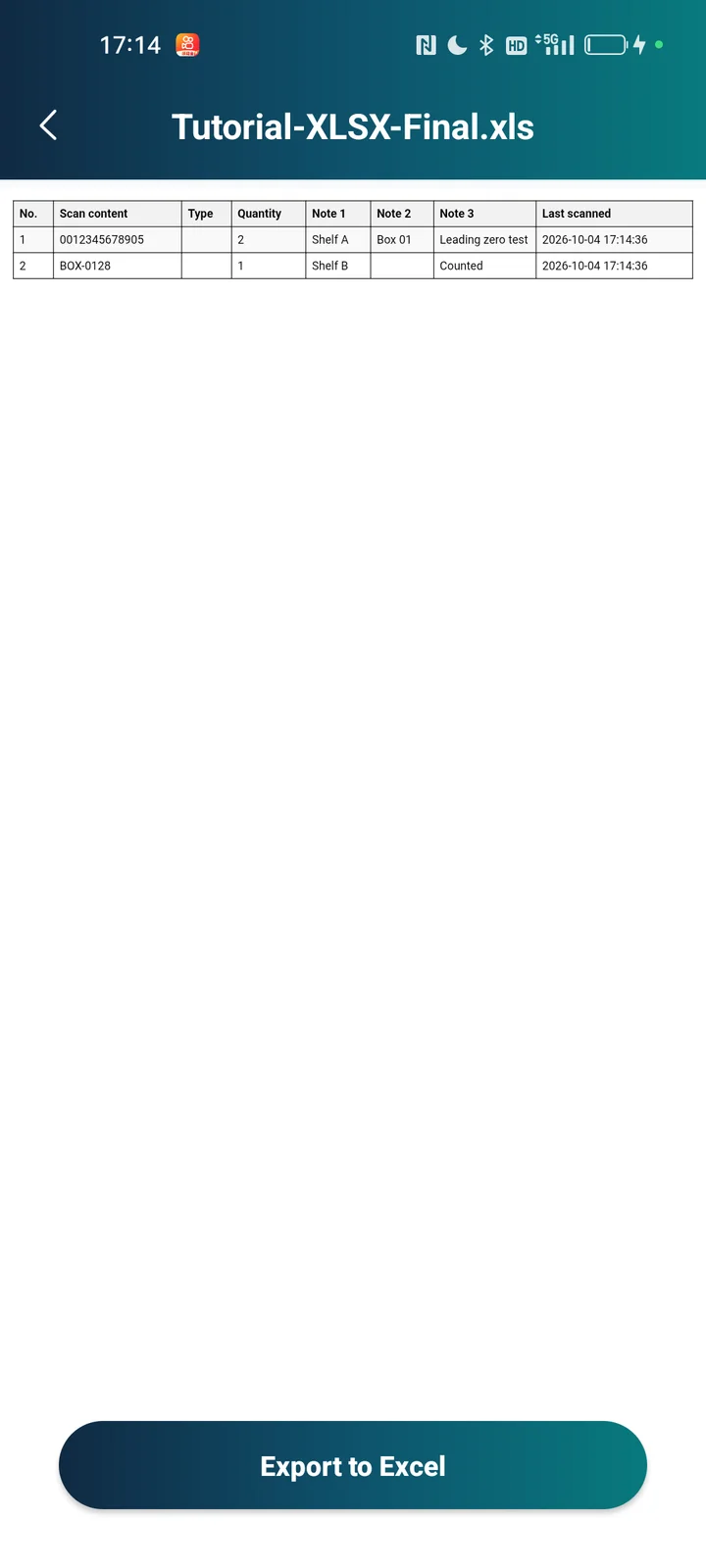
Export files and import templates use different layouts
The Excel export contains eight columns, including a row number, code type, and scan time. It cannot be used unchanged as the five-column import template. Copy Scan content into column A, Quantity into B, and the three notes into C–E. Do not simply rename an .xls file to .csv or .xlsx.